Creating a comfortable gaming space at home isn’t just about aesthetics—it’s about enhancing your performance, protecting your health, and maximizing your enjoyment. According to NPD Group’s 2020 research, the number of gamers in the United States increased by 32 million since 2018, with players spending an average of 14 hours per week gaming. With that much time invested, your gaming environment directly impacts your physical comfort, mental focus, and overall gaming experience.
Whether you’re a competitive esports player, casual weekend gamer, or content creator streaming to thousands, this guide will walk you through every essential element of building your ideal gaming sanctuary—from choosing the right ergonomic chair to optimizing your cable management system.
Planning Your Gaming Space: Size, Location, and Layout
Assessing Your Available Space
Before purchasing any equipment, evaluate your available space realistically. Your gaming area can range from a dedicated room to a corner setup, and each has distinct advantages.
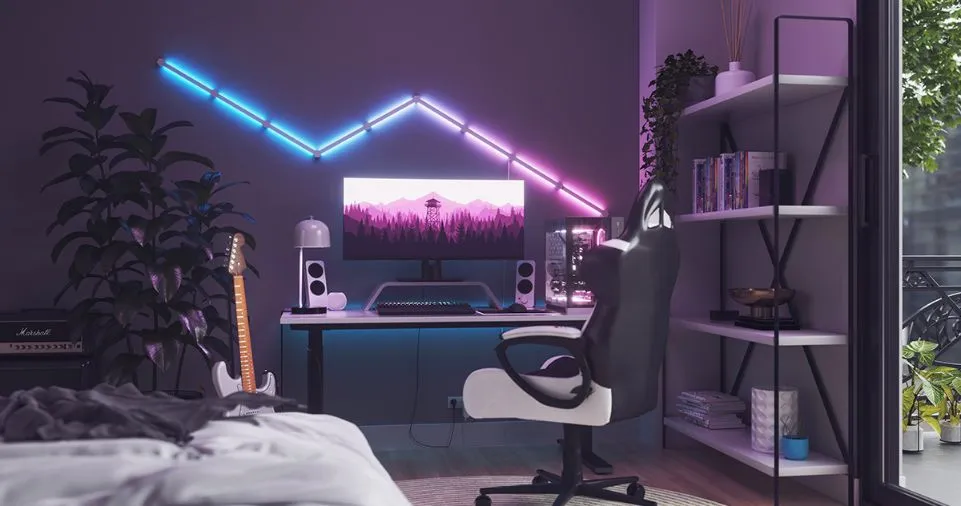
Small Gaming Corner (Under 150 sq ft)
- Pros: Cozy atmosphere perfect for solo gaming, easier to create an immersive environment with fewer furnishings, lower initial investment
- Cons: Limited space for multiple monitors or console gaming with friends, can feel cramped without proper organization
- Best for: PC gamers, single-player enthusiasts, apartment dwellers
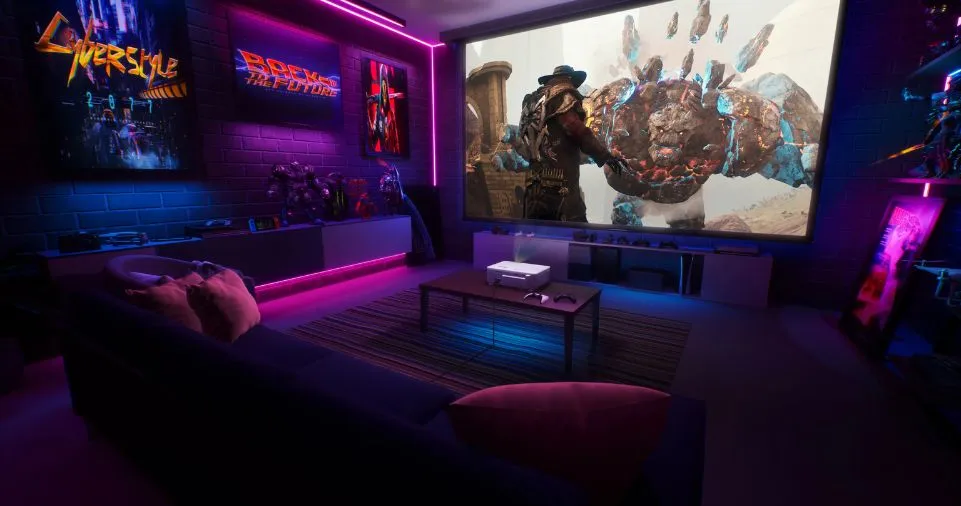
Large Gaming Room (150+ sq ft)
- Pros: Accommodates multi-monitor setups, console gaming stations, additional furniture for entertaining, space for offline activities like tabletop gaming
- Cons: Requires more equipment to avoid empty appearance, larger spaces reflect more sound without proper acoustic treatment
- Best for: Streamers, content creators, social gamers, families
Choosing the Optimal Room Location
When selecting your gaming space, consider these critical factors:
- Natural Light Access: Position your setup perpendicular to windows to minimize screen glare while benefiting from daylight’s positive effects on energy and focus
- Internet Connectivity: Choose a location near your router for stable connections, or ensure your space supports ethernet cable routing
- Ventilation: Gaming equipment generates heat—ensure adequate airflow to prevent overheating and maintain comfort
- Noise Control: Consider proximity to bedrooms, shared walls with neighbors, or high-traffic areas
- Electrical Outlets: Verify sufficient power outlets for your equipment, or plan for surge protectors and power strips
Layout Optimization Strategies
Your layout should prioritize three elements: accessibility, ergonomics, and immersion.
The L-Shaped Configuration
- Ideal for streamers and content creators
- Main desk for gaming, perpendicular desk for streaming equipment
- Maximizes corner space efficiently
- Estimated cost: $400-$1,200 for desk setup
The Minimalist Single-Desk Setup
- Perfect for space-constrained environments
- Focus on vertical storage solutions
- Clean, distraction-free gaming experience
- Estimated cost: $200-$600 for basic setup
The Entertainment Hub
- Combines PC gaming with console station
- Includes comfortable seating for multiplayer sessions
- Incorporates display shelving for collectibles
- Estimated cost: $800-$2,500 for complete setup
Essential Furniture: The Foundation of Comfort
Selecting the Perfect Gaming Desk
Your gaming desk serves as the command center for your entire setup. According to ergonomic research, your desk should accommodate your equipment while supporting proper posture throughout extended gaming sessions.
Key Desk Features to Consider:
| Feature | Importance | Recommended Specification |
|---|---|---|
| Surface Area | Critical | Minimum 47″ wide x 24″ deep for dual monitors |
| Height Adjustability | High | Electric standing desks (26″-52″ range) |
| Weight Capacity | Medium | 150+ lbs for multi-monitor setups |
| Cable Management | High | Built-in grommets, cable trays, or under-desk channels |
| Material Durability | High | Solid wood, MDF, or reinforced laminate |
| Storage Options | Medium | Built-in drawers or shelves for peripherals |
Top Desk Recommendations by Budget:
- Budget-Friendly ($200-$400): Standard rectangular desks with cable management—adequate for single monitor setups
- Mid-Range ($400-$800): L-shaped desks or electric standing desks like the Eureka Ergonomic L60 ($399.99)—excellent for dual monitors
- Premium ($750-$1,500): Height-adjustable desks like the Bifrost Elite 120 with D-Board accessories ($749.99+)—professional-grade with customization
Pro Tip: Measure your space before purchasing. An L-shaped desk requires approximately 60″ x 60″ of floor space but provides 25-50% more usable surface area than traditional desks.
Investing in an Ergonomic Gaming Chair
A quality gaming chair isn’t luxury—it’s essential health equipment. Research shows that proper ergonomic seating reduces back pain by up to 40% during prolonged sitting sessions.
Must-Have Chair Features:
- Lumbar Support: Adjustable lower back support prevents spinal compression (look for 3D-adjustable lumbar pillows)
- 4D Armrests: Height, width, depth, and angle adjustability for optimal arm positioning
- Seat Height Adjustment: Should allow feet flat on floor with knees at 90-degree angle (typically 16″-21″ range)
- Recline Function: 90-135 degree range for varied gaming positions and rest breaks
- Breathable Materials: Mesh backing or perforated leather for temperature regulation
- Weight Capacity: Match to your body weight plus 50 lbs for safety margin
Chair Comparison Table:
| Price Range | Features | Best For | Example Models |
|---|---|---|---|
| $200-$400 | Basic lumbar support, fixed armrests, fabric upholstery | Casual gamers, tight budgets | Standard gaming chairs |
| $400-$700 | Adjustable lumbar, 4D armrests, quality materials | Serious gamers, 4-6 hour sessions | SecretLab TITAN Evo ($519), Arc Ergonomic ($529.99) |
| $700+ | Premium ergonomics, memory foam, extended warranty | Professional gamers, streamers, 8+ hour sessions | Herman Miller x Logitech Embody |
Real-World Example: Professional streamer Harris Heller reports that upgrading from a $150 office chair to a $500 ergonomic gaming chair eliminated his chronic lower back pain within three weeks and improved his streaming endurance by 40%.
Technology Setup: Visual and Audio Excellence
Monitor Selection and Configuration
Your display is your window into gaming worlds. The right monitor setup dramatically impacts immersion, performance, and eye comfort.
Monitor Specifications Decoded:
| Specification | Good | Better | Best | Impact on Gaming |
|---|---|---|---|---|
| Resolution | 1080p (Full HD) | 1440p (2K) | 4K/2160p | Clarity and detail visibility |
| Refresh Rate | 60Hz | 144Hz | 240Hz+ | Smoothness, competitive advantage |
| Response Time | 5ms | 1-3ms | <1ms | Reduced motion blur |
| Panel Type | TN (fast) | VA (balanced) | IPS (color) | Viewing angles, color accuracy |
| Size | 24″ | 27″ | 32″+ curved | Immersion, peripheral vision |
Multi-Monitor Configurations:
- Dual Monitor Setup: Most popular among streamers—one for gaming, one for chat/OBS
- Triple Monitor Setup: Racing sim and flight sim enthusiasts—provides 180-degree field of view
- Ultrawide Single Monitor: Samsung Odyssey G9 49″ ($899.99+)—equivalent to dual 27″ monitors without bezels
Eye Health Tip: Position monitors 20-26 inches from your eyes at or slightly below eye level. Use the 20-20-20 rule: every 20 minutes, look at something 20 feet away for 20 seconds to reduce eye strain.
Audio System Configuration
Immersive audio transforms gaming from visual activity to multisensory experience. Quality sound helps you detect enemy footsteps in competitive games and fully appreciate cinematic storytelling in single-player adventures.
Gaming Audio Options:
| Solution | Advantages | Disadvantages | Price Range | Best Use Case |
|---|---|---|---|---|
| Gaming Headset | Personal audio, no neighbor disturbance, microphone included | Can cause ear fatigue, less spatial awareness | $50-$300 | Apartment living, late-night gaming, team communication |
| 2.1 Speaker System | Room-filling sound, no ear pressure, easy setup | Disturbs others, less precise audio positioning | $100-$400 | Solo gaming, daytime play |
| Surround Sound 5.1/7.1 | Maximum immersion, accurate directional audio | Expensive, complex setup, space-intensive | $300-$1,500 | Dedicated gaming rooms, home theaters |
| Soundbar | Space-efficient, decent audio quality, clean aesthetic | Limited surround capabilities | $150-$600 | Console gaming, minimalist setups |
Top Recommendations:
- Budget Headset ($75-$150): HyperX Cloud II—reliable, comfortable, great microphone
- Premium Speakers ($199): Logitech G560 with RGB lighting and DTS:X surround sound
- Professional Headset ($300+): SteelSeries Arctis Pro + GameDAC—audiophile-grade with customizable EQ
Lighting Design: Setting the Perfect Atmosphere
Understanding Gaming Room Lighting Principles
Proper lighting serves three purposes: reducing eye strain, creating ambiance, and enhancing aesthetics. The right lighting setup can improve your gaming performance while protecting your long-term vision health.
The Three-Layer Lighting Approach:
- Ambient Lighting: Overall room illumination—ceiling lights, LED panels (1500-3000 lumens recommended)
- Task Lighting: Focused lighting for specific areas—desk lamps, monitor backlights (500-1000 lumens)
- Accent Lighting: Decorative elements—RGB strips, neon signs, backlit shelves (200-500 lumens)
Lighting Health Facts:
- LED light flicker can cause headaches and eye fatigue—choose flicker-free bulbs
- Blue light exposure before bed disrupts sleep patterns—use warm color temperatures (2700K-3000K) for evening gaming
- Natural sunlight exposure improves focus and energy—game near windows when possible during daytime
RGB Lighting Implementation
RGB (Red, Green, Blue) lighting has become synonymous with gaming aesthetics, but it’s more than just style—it’s about creating customizable ambiance that matches your gaming mood.
Strategic RGB Placement Guide:
| Location | Product Type | Effect | Average Cost |
|---|---|---|---|
| Behind Monitor | LED bias lighting strips | Reduces eye strain, enhances perceived contrast | $15-$40 |
| Under Desk | RGB LED strips | Creates floating effect, highlights peripherals | $20-$60 |
| Wall Accent | Nanoleaf panels or Philips Hue | Dynamic, game-reactive lighting | $100-$300 |
| Ceiling Cove | Smart RGB strips | Indirect ambient lighting | $30-$80 |
| PC Case | Addressable RGB fans/strips | Showcases hardware | $50-$150 |
DEZCTOP RGB Lighting Bundle Example: Four LED strips with 80 total addressable LEDs, 20 dynamic effects, 12 static colors, music sync capability—all for $69.99. Can connect to motherboard ARGB headers for synchronized smart lighting with your system’s temperature and performance.
Pro Lighting Strategy: Use cooler color temperatures (4000K-5000K) during competitive gaming for alertness, and warmer temperatures (2700K-3000K) for relaxed, casual gaming sessions.
Cable Management: The Overlooked Essential
Why Cable Management Matters
Proper cable management isn’t just about aesthetics—it’s about safety, maintenance accessibility, and signal integrity. A cluttered cable situation creates tripping hazards, accumulates dust, and makes troubleshooting unnecessarily difficult.
Comprehensive Cable Management Solutions:
Under-Desk Solutions:
- Cable Trays: J-channel or wire basket trays ($15-$40)—holds multiple cables, easy access
- Cable Clips: Adhesive or screw-mounted ($8-$20 for packs)—routes individual cables along desk edges
- Cable Sleeves: Neoprene or fabric wrap ($12-$25)—bundles multiple cables into single clean line
- Velcro Strips: Reusable ties ($10-$15)—adjustable, non-permanent cable bundling
Wall and Floor Management:
- Cable Raceways: Paintable channels ($20-$50)—professional wall-mounted concealment
- Cable Covers: Rubber or plastic floor covers ($15-$30)—prevents tripping, protects cables from foot traffic
- Cord Organizers: Desktop hub boxes ($25-$40)—hides power strips and excess cable length
Pro Tips for Clean Setup:
- Label cables at both ends using cable tags or colored tape
- Leave 20-30% slack for future adjustments
- Keep power cables separate from audio/video cables to prevent electromagnetic interference
- Use braided or flat cables—they’re easier to manage than round rubber cables
- Route cables behind furniture whenever possible
Acoustic Treatment: Sound Quality and Noise Control
The Importance of Room Acoustics
Whether you’re streaming, voice chatting, or simply immersing yourself in game audio, room acoustics significantly impact sound quality. Untreated rooms create echo, muddied audio, and can disturb household members or neighbors.
Common Acoustic Issues in Gaming Rooms:
- Echo/Reverberation: Sound bounces off hard surfaces, creating hollow audio quality
- Flutter Echo: Rapid sound reflections between parallel walls
- Bass Build-up: Low frequencies accumulate in corners
- External Noise: Street sounds, HVAC systems, adjacent rooms
Practical Acoustic Solutions:
| Problem | Solution | DIY Option | Professional Option | Effectiveness |
|---|---|---|---|---|
| Wall Reflections | Acoustic panels | DIY fabric-wrapped panels ($50-$100) | Professional foam panels ($150-$400) | High |
| Floor Echo | Area rugs/carpeting | Standard area rugs ($100-$300) | Sound-dampening underlayment ($200-$500) | Medium |
| Corner Bass | Bass traps | DIY corner pillows ($30-$80) | Acoustic corner absorbers ($100-$300) | Medium-High |
| Room Echo | Acoustic diffusers | Bookshelf diffusion (books/objects) | Professional diffuser panels ($150-$600) | Medium |
| Window Noise | Heavy curtains | Blackout curtains ($40-$100) | Acoustic curtains ($150-$400) | Medium |
Sound Absorber Panel Example: The Elgato Wave Panels Starter Set ($99.99) provides acoustic foam panels specifically designed for content creators and gamers—reduces echo and reverb while maintaining sleek black aesthetics that complement modern gaming rooms.
Budget-Friendly DIY Approach:
- Add a plush area rug ($100-$200)—reduces floor reflections by 40-60%
- Hang heavy curtains or tapestries on walls ($50-$150)—absorbs mid-to-high frequencies
- Place thick blankets or sleeping bags in corners temporarily—dampens bass (free!)
- Add upholstered furniture (couch, gaming chair)—natural sound absorption
Storage and Organization: Maintaining Order
Smart Storage Solutions for Gaming Gear
Gaming equipment accumulates quickly—controllers, headsets, game cases, cables, collectibles, and more. Effective organization keeps your space functional and visually appealing.
Gaming Storage Systems:
Wall-Mounted Solutions:
- Floating Shelves: Display collectibles, store game cases—saves floor space
- Pegboard Systems (D-Board style): Customizable modular storage—hang controllers, headsets, cables
- Wall-Mounted Headset Hooks: NZXT Puck under-desk mount—keeps headset accessible, prevents damage
- Controller Charging Stations: Wall-mounted docks—charges while displaying controllers
Desk-Based Organization:
- Monitor Stands with Storage: Elevates screen, creates under-monitor storage for keyboard/controllers
- Drawer Organizers: Compartmentalized storage for small items—cables, batteries, cleaning supplies
- Desktop Shelving Units: Vertical storage without wall mounting—ideal for renters
Large Item Storage:
- Gaming Shelving Units: Display game collection, Funko Pops, consoles—IKEA Kallax popular choice ($70-$150)
- Rolling Carts: Mobile storage for streaming equipment—can be hidden when not in use
- Under-Desk CPU Holder: Mounts PC tower under desk—saves floor space, improves airflow
Organization Best Practices:
- Vertical Thinking: Use wall and vertical desk space—frees precious floor and desk surface area
- Daily Use Accessibility: Keep frequently used items within arm’s reach
- Hidden Storage: Use closed cabinets for less aesthetically pleasing items
- Cable-Friendly Storage: Choose furniture with cable pass-throughs
- Modular Approach: Select adjustable storage that grows with your collection
Personalization and Theming: Making It Yours
Popular Gaming Room Themes
Your gaming space should reflect your personality and favorite gaming aesthetics. Theming creates cohesion and enhances immersion.
Top Gaming Room Themes for 2025:
1. Cyberpunk/Neon Aesthetic
- Color Palette: Neon pink, electric blue, deep purple, black
- Key Elements: RGB strips, neon signs, cityscape wall art, metallic accents
- Furniture: Black or dark gray with chrome/metal highlights
- Budget Range: $500-$2,000
2. Minimalist Modern
- Color Palette: White, black, gray with single accent color
- Key Elements: Clean lines, hidden cables, minimal decorations
- Furniture: Scandinavian-style desks, simple ergonomic chairs
- Budget Range: $400-$1,500
3. Retro/Arcade
- Color Palette: Primary colors, neon accents, warm yellows
- Key Elements: Vintage posters, arcade machines, CRT displays
- Furniture: Wood grain finishes, classic arcade stools
- Budget Range: $600-$3,000+
4. Nature-Inspired/Biophilic
- Color Palette: Earth tones, greens, warm woods
- Key Elements: Live plants, wooden furniture, natural textures
- Furniture: Bamboo desks, natural fiber chairs
- Budget Range: $500-$1,800
5. Space/Sci-Fi Theme
- Color Palette: Dark blue, silver, white, constellation patterns
- Key Elements: Star projectors, planet lamps, space wallpapers
- Furniture: Futuristic designs, glossy finishes
- Budget Range: $600-$2,200
Decorative Elements and Wall Art
Cost-Effective Decoration Options:
- Posters and Prints: Amazon, Displate ($15-$50 each)—instant personality
- LED Neon Signs: Custom text or gaming logos ($60-$200)
- Shelving Displays: Showcase collectibles, action figures, limited editions
- Canvas Art: High-quality gaming artwork ($40-$150)
- Wall Decals: Removable vinyl stickers ($20-$80)—perfect for renters
- Tapestries: Large-format fabric art ($30-$100)—covers large wall areas affordably
Display Ideas for Game Collections:
- Alphabetical Organization: Easy to locate specific titles
- Chronological by Series: Showcases gaming history progression
- Color Coordination: Creates visual rhythm, Instagram-worthy
- Platform Grouping: Separate sections for PC, PlayStation, Xbox, Nintendo
- Backlit Display Cases: IKEA Detolf with LED strips—museum-quality presentation ($80-$150)
Gaming PC and Console Setup Essentials
Building vs. Buying Your Gaming PC
Pre-Built Gaming PC Advantages:
- Warranty coverage on entire system
- No assembly required—plug and play
- Often includes optimized software
- Average Cost: $800-$2,500 depending on specs
Custom-Built PC Advantages:
- Component selection control
- Better value for money (15-25% savings typically)
- Easier future upgrades
- Learning experience
- Average Cost: $600-$2,000 for equivalent performance
Essential PC Components Priority List:
| Component | Impact on Gaming | Budget Allocation | Recommended Specs 2025 |
|---|---|---|---|
| GPU (Graphics Card) | Highest | 35-40% | NVIDIA RTX 4060/4070 or AMD RX 7600/7800 XT |
| CPU (Processor) | High | 20-25% | AMD Ryzen 5 7600X or Intel i5-13600K |
| RAM (Memory) | Medium | 10-15% | 16GB DDR4/DDR5 (32GB for streaming/editing) |
| Storage (SSD) | Medium | 8-12% | 1TB NVMe M.2 SSD (2TB for large libraries) |
| PSU (Power Supply) | Critical | 8-10% | 650-750W 80+ Gold certified |
| Motherboard | Foundation | 10-12% | Compatible with CPU, adequate connectivity |
| Case | Aesthetics/Airflow | 5-8% | Good airflow, cable management, tempered glass |
Gaming Peripherals That Matter
Keyboard Selection:
- Mechanical Keyboards: Tactile feedback, faster response, durable—popular switches: Cherry MX, Gateron ($60-$200)
- Membrane Keyboards: Quieter, more affordable, suitable for casual gaming ($20-$60)
- Key Features: Anti-ghosting (6KG or NKRO), programmable macros, RGB backlighting, media controls
Mouse Considerations:
- DPI Settings: 800-3200 DPI for FPS games, 400-1600 for MOBAs, 1600-3200 for general use
- Sensor Type: Optical sensors more accurate, laser sensors work on more surfaces
- Weight: Lighter mice (60-80g) for fast movements, heavier (100-120g) for precision
- Button Count: 2-5 buttons for FPS, 12+ for MMOs
- Wired vs. Wireless: Modern wireless has no input lag, wired never needs charging
Mousepad Importance:
- Size Matters: Extended mousepads (36″+ width) allow full arm movements for low-sensitivity gaming
- Surface Types: Cloth for control, hard plastic for speed
- RGB Mousepad: Adds aesthetic, typically $30-$80
- Wrist Support: Gel or memory foam reduces carpal tunnel risk
Webcam and Streaming Equipment
For content creators and streamers, quality webcam and microphone setup is non-negotiable.
Webcam Resolution Guide:
- 720p (HD): Acceptable for casual streaming—$30-$60
- 1080p (Full HD): Standard for serious streamers—$60-$150
- 4K (Ultra HD): Professional quality, bandwidth-intensive—$150-$300+
Microphone Options:
- Budget USB Microphone ($60-$100): Blue Snowball, Fifine K669
- Mid-Range USB ($100-$200): Blue Yeti, HyperX QuadCast
- Professional XLR Setup ($200-$500+): Shure SM7B with audio interface—broadcast quality
Budget Planning: Gaming Room Cost Breakdown
Understanding Total Investment
Creating a comfortable gaming space requires realistic budget planning. Here’s a comprehensive cost analysis across three budget tiers.
Budget Gaming Room ($1,000-$2,000):
- Desk: $150-$300 (basic rectangular or L-shaped)
- Chair: $150-$300 (entry-level ergonomic)
- Monitor: $150-$250 (1080p, 144Hz, 24″)
- PC/Console: $400-$800 (budget gaming PC or console)
- Peripherals: $100-$200 (keyboard, mouse, headset)
- Lighting: $50-$100 (basic LED strips)
- Decorations: $50-$150 (posters, basic shelving)
Mid-Range Gaming Room ($2,000-$4,500):
- Desk: $400-$800 (electric standing desk or premium L-shaped)
- Chair: $400-$700 (quality ergonomic like SecretLab)
- Monitor: $300-$600 (1440p, 165Hz, 27″ or dual 1080p)
- PC/Console: $1,000-$1,800 (solid gaming PC)
- Peripherals: $300-$500 (mechanical keyboard, premium mouse, quality headset)
- Lighting: $150-$300 (Nanoleaf panels or Philips Hue system)
- Decorations: $200-$400 (collectible displays, artwork, shelving)
- Acoustic Treatment: $100-$300 (acoustic panels, area rug)
Premium Gaming Room ($4,500-$10,000+):
- Desk: $750-$1,500 (premium adjustable desk with accessories)
- Chair: $700-$1,500 (Herman Miller, Secretlab TITAN)
- Monitors: $800-$2,000 (ultrawide or triple monitor setup)
- PC: $2,000-$4,000 (high-end gaming/streaming build)
- Peripherals: $500-$1,000 (premium keyboard, wireless mouse, audiophile headphones)
- Lighting: $400-$800 (complete smart lighting system)
- Audio: $300-$1,000 (surround sound system or premium speakers)
- Decorations: $500-$1,500 (custom artwork, premium shelving, collectibles)
- Acoustic Treatment: $400-$1,200 (professional panels, bass traps)
- Streaming Equipment: $500-$1,500 (DSLR camera, professional microphone, lighting kit)
Money-Saving Strategies
Smart Shopping Tips:
- Buy During Sales: Black Friday, Cyber Monday, Prime Day—save 20-40%
- Refurbished Equipment: Certified refurbished monitors and peripherals—save 30-50%
- Second-Hand Furniture: Facebook Marketplace, Craigslist for desks and chairs—save 40-70%
- Modular Approach: Build room in phases, prioritize essentials first
- DIY Projects: Build custom desk, create own acoustic panels—save 50-75%
Priority Investment Hierarchy:
- Ergonomic Chair (prevents $1,000+ medical bills)
- Primary Monitor (what you stare at for hours)
- Desk (foundation of entire setup)
- PC/Console (the heart of gaming)
- Peripherals (direct interaction points)
- Lighting (enhances everything else)
- Decorations (personalization, can add over time)
Health and Ergonomics: Gaming Safely
The Physical Cost of Poor Gaming Posture
Extended gaming sessions without proper ergonomics lead to serious health consequences:
- Back Pain: 65% of gamers report back discomfort after 4+ hour sessions
- Neck Strain: “Tech neck” from monitor positioning issues
- Carpal Tunnel Syndrome: Repetitive strain from poor wrist positioning
- Eye Strain: Digital eye fatigue from improper lighting and screen distance
- Circulation Issues: Blood flow restriction from prolonged sitting
Ergonomic Setup Guidelines
The 90-90-90 Rule:
- 90° Elbows: Arms at right angle when hands on keyboard/controller
- 90° Knees: Thighs parallel to floor, feet flat
- 90° Hips: Upright sitting position with proper lumbar support
Monitor Positioning Formula:
- Distance: 20-26 inches from eyes (arm’s length)
- Height: Top of screen at or slightly below eye level
- Angle: Screen tilted 10-20 degrees upward from bottom
- Brightness: Match ambient room lighting (40-60% brightness typically)
Keyboard and Mouse Placement:
- Keyboard: Directly in front of body, elbows close to torso
- Mouse: Same height as keyboard, wrist neutral position
- Wrist Rests: Use for breaks only, not active gaming—prevents nerve compression
Active Gaming Breaks
Implement structured break protocols to prevent injury:
The 50-10 Rule:
- Game for 50 minutes
- Take 10-minute break for stretching and eye rest
- Improves focus and reduces fatigue
Quick Desk Stretches (2-3 minutes):
- Neck Rolls: 10 rotations each direction
- Shoulder Shrugs: 15 reps, hold 3 seconds at top
- Wrist Circles: 10 rotations each direction
- Standing Back Extension: 10 reps, hold 5 seconds
- Hip Flexor Stretch: 30 seconds each leg
Eye Care Routine:
- 20-20-20 Rule: Every 20 minutes, look 20 feet away for 20 seconds
- Blink Consciously: Gaming reduces blink rate by 60%—intentionally blink more
- Blue Light Filter: Use built-in monitor filters or gaming glasses for evening sessions
- Proper Lighting: Never game in complete darkness—maintain ambient room light
Advanced Tips for Serious Gamers
Network Optimization for Competitive Gaming
Your internet connection quality directly impacts competitive performance, particularly in fast-paced FPS and MOBA games.
Wired vs. Wireless Internet:
| Connection Type | Latency | Stability | Speed | Best For |
|---|---|---|---|---|
| Ethernet (Wired) | 1-5ms | Excellent | Full bandwidth | Competitive gaming, streaming |
| Wi-Fi 6E | 5-15ms | Good | Near full bandwidth | Modern homes, can’t run cable |
| Wi-Fi 5 | 10-30ms | Fair | Variable | Casual gaming, mobile devices |
| Wi-Fi 4 and older | 20-50ms+ | Poor | Limited | Not recommended for gaming |
Network Optimization Steps:
- Use Ethernet: Even 50-foot cables ($15-$30) beat Wi-Fi every time
- Quality Router: Gaming routers with QoS (Quality of Service) prioritization—$150-$300
- Close Background Applications: Bandwidth-heavy apps (updates, streaming) increase ping
- Port Forwarding: Configure router for specific games—reduces NAT issues
- ISP Plan: Minimum 100 Mbps download for smooth gaming and streaming
Multi-Functional Room Design
Modern gaming spaces often serve multiple purposes—work, gaming, content creation, and relaxation.
Hybrid Office-Gaming Room Strategies:
- Dual Desk Setup: Separate work and gaming areas psychologically
- Cable Management Systems: Quick disconnect for work laptop vs. gaming PC
- Adjustable Lighting Scenes: Professional lighting for Zoom calls, ambient for gaming
- Sound Management: Quality microphone with noise gate—professional communication
- Background Considerations: Clean, professional video background or virtual backgrounds
Small Space Multi-Purpose Solutions:
- Loft Bed with Desk Underneath: Novogratz Twin Loft—maximizes vertical space in bedrooms
- Murphy Desk: Folds flat when not in use—saves 15-20 sq ft
- Rolling Equipment Cart: Mobile streaming equipment—tucks away when not creating content
- Convertible Furniture: Ottoman storage, fold-out tables
Maintenance and Upkeep: Keeping Your Space Fresh
Regular Cleaning Schedule
Gaming equipment accumulates dust, affecting performance and aesthetics. Establish cleaning routines:
Weekly Maintenance (15 minutes):
- Wipe down desk surface with microfiber cloth
- Clean keyboard with compressed air
- Wipe mousepad with damp cloth
- Clean monitor screen with screen-safe cleaner
- Empty trash, reorganize loose items
Monthly Deep Clean (1-2 hours):
- Clean PC internals with compressed air (if comfortable)
- Wash fabric chair covers or wipe leather
- Vacuum floor and area rugs thoroughly
- Clean behind desk, reorganize cables
- Dust collectibles and shelving
- Clean webcam lens
- Sanitize frequently-touched surfaces (mouse, keyboard)
Quarterly Maintenance (2-3 hours):
- Check all cable connections
- Update PC drivers and software
- Inspect chair for wear—tighten loose bolts
- Reorganize storage areas
- Evaluate layout efficiency—make improvements
- Deep clean acoustic panels if applicable
Equipment Longevity Tips
Protect your investment with proper care:
PC Maintenance:
- Temperature Monitoring: Keep GPU under 80°C, CPU under 75°C during gaming
- Dust Prevention: Positive air pressure case setup, monthly cleaning
- Software Updates: Latest drivers improve performance and stability
- SSD Health: Monitor write cycles, avoid filling beyond 80% capacity
Peripheral Care:
- Mechanical Keyboard: Remove keycaps quarterly for deep cleaning
- Mouse: Replace mouse feet when worn—improves glide
- Headset: Clean ear pads monthly, replace when worn
- Monitor: Avoid screen burn-in—use screen savers, vary content
Furniture Protection:
- Desk Surface: Use desk mat or mousepad to prevent scratches
- Chair: Rotate seat cushion every 3 months for even wear
- Cable Wear: Secure cables to prevent stress at connection points
- Floor Protection: Chair mat prevents wheel damage to flooring
Future-Proofing Your Gaming Space
Designing for Upgradability
Technology evolves rapidly—build flexibility into your setup from the start.
Modular Design Principles:
- Oversized Desk: Choose larger desk than currently needed—accommodates future monitors
- Cable Management Capacity: Install more cable channels than currently needed
- Power Supply Headroom: 100-150W extra capacity for GPU upgrades
- Adjustable Shelving: Modular systems like IKEA Kallax—expand as collection grows
- Monitor Arms: Easier to swap monitors than fixed stands
Technology Refresh Timeline:
- GPU: 3-4 years for mid-range, 4-5 years for high-end
- Monitor: 5-7 years (unless resolution standard changes)
- Chair: 5-7 years with proper maintenance
- Desk: 10+ years for quality construction
- Peripherals: 3-5 years for mechanical keyboards, 2-3 years for mice
Emerging Gaming Room Trends 2025
Stay ahead of the curve with upcoming innovations:
Virtual Reality Integration:
- Dedicated VR space: 6.5′ x 6.5′ minimum clear area
- Wall-mounted cable management systems for tethered VR
- Haptic feedback furniture and accessories
Smart Home Integration:
- Voice-controlled lighting, temperature, and music
- Automated scenes: “Gaming Mode” dims lights, changes RGB colors
- Integration with game launches—Philips Hue Sync
Sustainability Focus:
- Energy-efficient LED lighting
- Ergonomic furniture from sustainable materials
- Recycled gaming peripherals
- Power management systems to reduce standby consumption
Biophilic Design:
- Living walls with low-maintenance plants
- Natural materials (wood, stone) combined with tech
- Circadian rhythm lighting systems
Common Mistakes to Avoid
Top Gaming Room Setup Errors
Learn from others’ mistakes and save money, time, and frustration.
1. Undersized Desk
- Problem: Cramped workspace, monitor too close, no room for peripherals
- Solution: Measure equipment first, add 12-18″ buffer space
2. Poor Chair Investment
- Problem: Back pain, reduced gaming enjoyment, expensive medical bills
- Solution: Spend 20-30% of budget on quality ergonomic chair
3. Neglecting Cable Management
- Problem: Messy appearance, tripping hazard, difficult troubleshooting
- Solution: Plan cable routes before setup, invest in management tools
4. Insufficient Lighting
- Problem: Eye strain, headaches, difficulty seeing peripherals
- Solution: Layer ambient, task, and accent lighting
5. Ignoring Acoustics
- Problem: Echo in recordings, poor audio quality, neighbor complaints
- Solution: Add soft furnishings, acoustic panels, soundproofing
6. Improper Monitor Height
- Problem: Neck pain, hunched posture, reduced comfort
- Solution: Top of screen at or below eye level—use monitor arm or stand
7. Overspending Initially
- Problem: Debt, buyer’s remorse, commitment to wrong choices
- Solution: Start with essentials, upgrade methodically over 6-12 months
8. Poor Ventilation
- Problem: Overheating equipment, uncomfortable gaming environment
- Solution: Position desk away from walls, ensure PC has breathing room
9. Forgetting Storage Planning
- Problem: Cluttered space, lost accessories, dust accumulation
- Solution: Incorporate vertical storage before buying equipment
10. Matching Components Poorly
- Problem: Bottlenecks (powerful GPU with weak CPU), wasted money
- Solution: Research balanced builds, prioritize GPU for gaming
Room Design Case Studies
Case Study 1: Budget Bedroom Corner Setup ($1,200)
Challenge: College student in shared dorm room (120 sq ft total), $1,200 budget, limited space
Solution:
- Desk: IKEA Linnmon/Adils corner desk ($60)—fits unused corner
- Chair: Secretlab Omega used ($250)—Facebook Marketplace find
- Monitor: AOC 24G2 24″ 144Hz ($180)—excellent value
- PC: Used gaming PC, upgraded GPU ($600)—Ryzen 5 3600, RTX 3060
- Peripherals: Budget mechanical keyboard ($50), Logitech G305 wireless mouse ($40)
- Lighting: Amazon LED strips ($20)—behind desk only
- Total: $1,200
Results: Competitive gaming performance in 4’x4′ space, no room modifications needed for rental compliance
Case Study 2: Family Multi-Purpose Gaming Room ($3,800)
Challenge: Convert spare bedroom (12’x10′) into family gaming room, accommodate console and PC gaming, budget $3,800
Solution:
- PC Gaming Area: L-shaped desk ($450), ergonomic office chair ($320), dual 27″ monitors ($600), mid-range PC ($1,400)
- Console Gaming Area: 55″ 4K TV ($500), comfortable sectional sofa ($400), PlayStation 5 ($500)
- Shared Elements: RGB lighting system ($180), acoustic panels ($200), game shelving ($150), area rug ($100)
- Total: $3,800
Results: Separate zones allow simultaneous use, family-friendly environment, increased home entertainment options
Case Study 3: Professional Streamer Studio ($8,500)
Challenge: Full-time content creator needs professional streaming setup, excellent audio/video quality, dedicated room (14’x12′)
Solution:
- Main Setup: Electric standing desk ($900), Herman Miller Aeron chair ($1,100), ultrawide monitor + vertical monitor ($1,200), high-end streaming PC ($2,800)
- Streaming Equipment: Sony A6400 camera ($900), Shure SM7B + audio interface ($550), professional lighting ($400)
- Room Treatment: Acoustic panels and bass traps ($800), adjustable RGB lighting system ($300)
- Furniture: Shelving for collectibles ($250), storage cabinets ($150)
- Decorations: Custom neon sign ($200), artwork and props ($350)
- Total: $8,500
Results: Professional broadcast quality, comfortable 8+ hour sessions, tax-deductible home office
Conclusion: Your Gaming Sanctuary Awaits
Creating the perfect gaming space at home is a journey, not a destination. Whether you’re investing $1,000 or $10,000, the principles remain the same: prioritize comfort, optimize ergonomics, and personalize your environment.
Key Takeaways
- Ergonomics First: Your health is more valuable than any equipment—invest in proper desk and chair
- Plan Before Purchasing: Measure space, research components, read reviews
- Build Gradually: Start with essentials, upgrade systematically over time
- Cable Management Matters: Clean setup improves functionality and aesthetics
- Lighting Affects Everything: Reduce eye strain while creating ambiance
- Personalization Creates Joy: Your space should reflect your gaming identity
- Maintenance Extends Lifespan: Regular cleaning and care protect your investment
- Future-Proof When Possible: Choose upgradable, flexible solutions
Your Next Steps
Ready to transform your gaming experience? Start today with these actionable steps:
Week 1: Planning Phase
- Measure your available space accurately
- Determine realistic budget based on priorities
- Research and compare desk and chair options
- Create Pinterest board or folder for design inspiration
Week 2: Essential Purchases
- Order ergonomic chair (highest priority)
- Select and purchase appropriate desk
- Plan cable management approach
- Measure for monitor positioning
Week 3: Technology Setup
- Configure PC/console in optimal position
- Install cable management solutions
- Set up monitors at proper height and distance
- Test internet connection quality
Week 4: Refinement and Personalization
- Add lighting elements strategically
- Incorporate acoustic treatments if needed
- Display collectibles and artwork
- Fine-tune seating position and desk height
Join the Gaming Community
Your gaming space is never truly finished—it evolves with your preferences, new technology, and creative ideas. Share your setup on Reddit’s r/battlestations, r/gamingsetups, or Instagram using #gamingroom to inspire others and get feedback from the community.
Remember: The perfect gaming room isn’t about having the most expensive equipment—it’s about creating a space where you can comfortably pursue your passion for hours on end. Start with what you can afford, prioritize your health and comfort, and build your dream setup one upgrade at a time.
Ready to level up your gaming space? Begin with a quality ergonomic chair today—your back will thank you after every gaming session. Your ideal gaming sanctuary is closer than you think.