Your gaming monitor is the window to your virtual world. While many gamers invest thousands of dollars in powerful graphics cards and processors, they often overlook the display that showcases all that performance. The truth is, even a $2,000 gaming PC paired with a subpar monitor delivers a disappointing experience.
Choosing the right gaming monitor isn’t just about picking the biggest or most expensive option. It’s about understanding how different specifications work together to match your gaming style, desk setup, and hardware capabilities. Whether you’re a competitive esports player chasing every millisecond of advantage or an immersive single-player enthusiast seeking stunning visuals, this comprehensive guide will help you make an informed decision.
Let’s break down everything you need to know to select the perfect gaming monitor for your unique setup.
Understanding Screen Size: Finding Your Sweet Spot
The Goldilocks Zone: 24-27 Inches for Most Gamers
Monitor size significantly impacts your gaming experience, but bigger isn’t always better. The ideal size depends on your viewing distance, desk space, and gaming preferences.
For competitive gaming: Most professional esports players prefer 24-inch monitors. The smaller screen allows them to see the entire display without moving their head, leading to faster reaction times. Every corner of the screen remains within your peripheral vision, crucial for games like Counter-Strike, Valorant, or League of Legends.
For balanced gaming: A 27-inch monitor offers the perfect middle ground. It provides enough screen real estate for immersive gameplay while maintaining excellent pixel density at 1440p resolution. This size works beautifully for both competitive shooters and story-driven adventures.
For immersive experiences: Gamers who prioritize visual spectacle over competitive edge might consider 32-inch displays or ultrawide monitors. These larger screens excel in open-world RPGs, racing simulators, and cinematic single-player games where you want to feel transported into the game world.
Viewing Distance Calculator
Your ideal monitor size correlates directly with how far you sit from the screen. Here’s a practical guideline:
| Viewing Distance | Recommended Screen Size | Ideal Resolution |
|---|---|---|
| 1.5 – 2 feet (arm’s length) | 24 inches | 1080p or 1440p |
| 2 – 2.5 feet (typical desk setup) | 27 inches | 1440p |
| 2.5 – 3 feet (relaxed setup) | 27-32 inches | 1440p or 4K |
| 3+ feet (console/couch gaming) | 32+ inches or TV | 4K |
Pro Tip: Sit at your desk and extend your arm. The tip of your middle finger should roughly reach the center of your screen. This distance ensures comfortable viewing without eye strain during extended gaming sessions.
Resolution Explained: Balancing Clarity and Performance
The Resolution Hierarchy
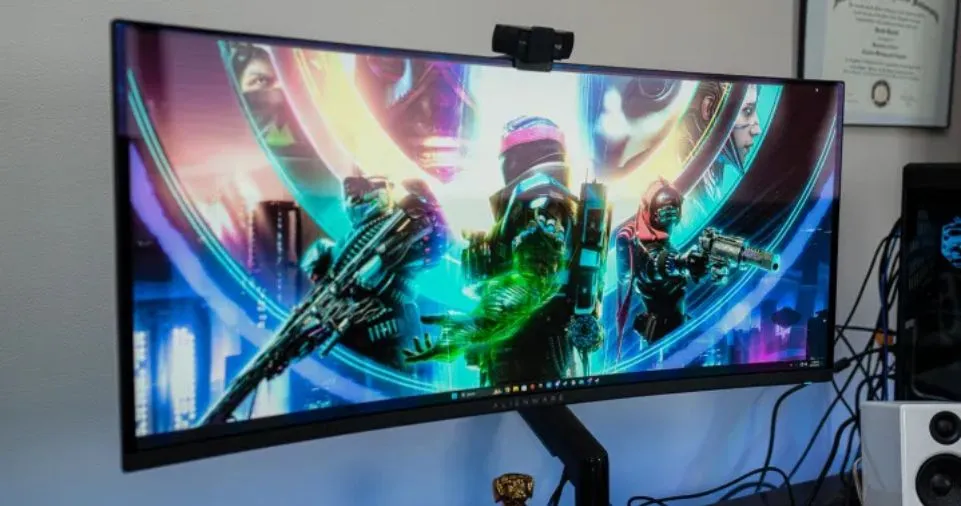
Resolution determines how many pixels your monitor displays, directly affecting image sharpness and clarity. However, higher resolution demands more graphics processing power.
1080p (Full HD – 1920×1080):
- Best for: Competitive gaming, budget builds, high refresh rate prioritization
- Graphics card requirement: GTX 1660 Super or RX 5600 XT for 144Hz gaming
- Sweet spot screen size: 24 inches maximum
- Frame rate potential: 200+ FPS in competitive titles
1440p (Quad HD – 2560×1440):
- Best for: Balanced visual quality and performance
- Graphics card requirement: RTX 4060 Ti or RX 7700 XT for high refresh rates
- Sweet spot screen size: 27-32 inches
- Frame rate potential: 100-165 FPS in AAA games
4K (Ultra HD – 3840×2160):
- Best for: Visual fidelity enthusiasts, single-player gamers
- Graphics card requirement: RTX 4080 or RX 7900 XTX minimum
- Sweet spot screen size: 27 inches and larger
- Frame rate potential: 60-120 FPS in demanding titles
Pixel Density: The Hidden Factor
Pixel density (measured in pixels per inch or PPI) determines how sharp text and images appear. Here’s what different combinations deliver:
- 27″ at 1080p: ~81 PPI (pixelated, not recommended)
- 27″ at 1440p: ~109 PPI (optimal sharpness)
- 27″ at 4K: ~163 PPI (extremely sharp, may require scaling)
- 32″ at 4K: ~137 PPI (comfortable without scaling)
Real-world example: Imagine reading a book. A 27″ 1080p monitor is like reading large-print text from across the room—you can make it out, but individual letters look chunky. A 27″ 1440p monitor is like reading a standard paperback at arm’s length—perfectly clear and comfortable. A 27″ 4K monitor is like reading fine print—incredibly detailed but potentially requiring a magnifying glass (UI scaling) for comfort.
Refresh Rate: The Smoothness Revolution
Understanding Hertz and Frame Rates
Refresh rate, measured in Hertz (Hz), indicates how many times per second your monitor updates the image. This specification dramatically affects perceived smoothness and responsiveness.
Think of refresh rate like a flip book animation. A 60Hz monitor is like flipping 60 pages per second—smooth enough for casual viewing. A 144Hz monitor flips 144 pages per second, creating noticeably smoother motion. A 240Hz monitor provides professional-grade fluidity that competitive gamers swear by.
Refresh Rate Tiers and Gaming Performance
| Refresh Rate | Gaming Experience | Best For | GPU Requirement |
|---|---|---|---|
| 60Hz | Standard, acceptable for slow-paced games | Casual gaming, older hardware | Any modern GPU |
| 75-100Hz | Noticeable improvement over 60Hz | Budget-conscious gamers | GTX 1650 or better |
| 144-165Hz | Significantly smoother, competitive advantage | Most gamers, FPS enthusiasts | RTX 3060 or RX 6600 XT |
| 240Hz | Ultra-smooth, professional-grade | Competitive esports players | RTX 4070 or RX 7800 XT |
| 360Hz+ | Maximum responsiveness | Professional gamers, extreme enthusiasts | RTX 4080 or better |
Critical insight: Your refresh rate benefits only extend as far as your GPU’s frame rate output. A 240Hz monitor displaying 60 FPS still looks like 60 FPS. Match your monitor’s refresh rate with your graphics card’s realistic performance in your favorite games.
The Diminishing Returns Curve
The jump from 60Hz to 144Hz provides the most dramatic improvement—many gamers describe it as life-changing. The upgrade from 144Hz to 240Hz offers noticeable benefits, particularly in fast-paced competitive titles. Beyond 240Hz, improvements become increasingly subtle, primarily benefiting professional players where microseconds matter.
Practical recommendation: For most gamers in 2025, 144Hz-165Hz at 1440p represents the optimal balance of smoothness, visual quality, and affordability.
Panel Technology Deep Dive: TN vs VA vs IPS vs OLED
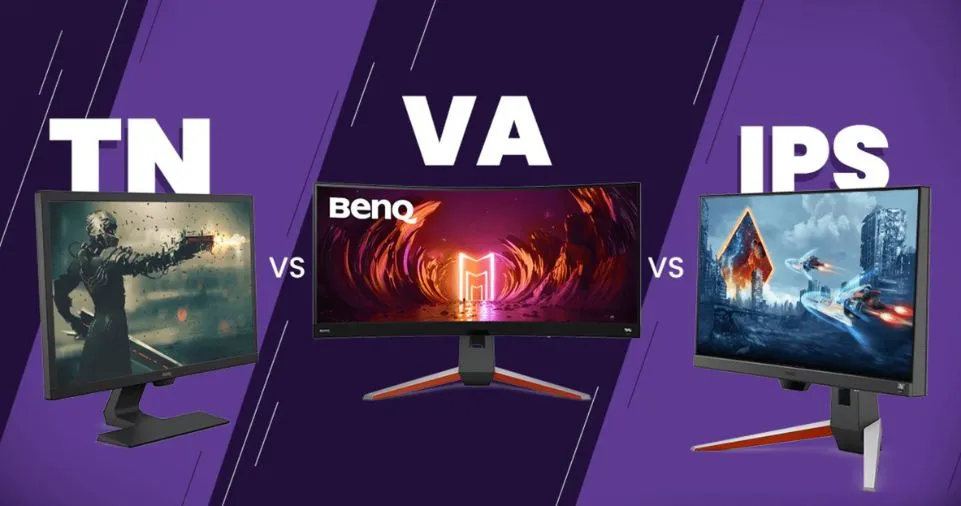
The Four Panel Types Explained
Different panel technologies offer distinct advantages and trade-offs. Understanding these differences helps you prioritize what matters most for your gaming style.
TN (Twisted Nematic) Panels:
Strengths:
- Fastest response times (0.5-1ms GtG)
- Highest refresh rates available (up to 540Hz)
- Most affordable for high-refresh options
- Lowest input lag
Weaknesses:
- Poor viewing angles (colors shift when viewed off-center)
- Inferior color accuracy and saturation
- Washed-out blacks and limited contrast
Best for: Competitive FPS gamers prioritizing speed above visual quality
VA (Vertical Alignment) Panels:
Strengths:
- Superior contrast ratios (3000:1 typical)
- Deep, rich blacks
- Better color reproduction than TN
- Excellent for dark scene visibility
Weaknesses:
- Slower response times leading to ghosting
- Dark-level smearing in fast motion
- Inconsistent performance across price ranges
Best for: Single-player gamers, horror games, cinematic experiences
IPS (In-Plane Switching) Panels:
Strengths:
- Excellent color accuracy (99% sRGB typical)
- Wide viewing angles (178° horizontal and vertical)
- Modern fast IPS technology rivals TN speeds
- Consistent performance across brightness levels
Weaknesses:
- IPS glow visible in dark scenes
- Slightly higher input lag than TN (negligible in modern panels)
- More expensive than TN for equivalent specs
Best for: All-around gaming, content creation, visual quality enthusiasts
OLED (Organic Light-Emitting Diode) Panels:
Strengths:
- Infinite contrast ratio (true blacks)
- Instantaneous response time (0.03ms)
- Unmatched color vibrancy and accuracy
- Perfect viewing angles
Weaknesses:
- Risk of burn-in with static elements
- Higher cost than LED-backlit alternatives
- Lower peak brightness in full-screen scenarios
- Limited size and resolution options currently
Best for: Premium gaming experiences, dark game enthusiasts, those willing to manage burn-in risks
Panel Technology Comparison Table
| Feature | TN | VA | IPS | OLED |
|---|---|---|---|---|
| Response Time | ★★★★★ | ★★☆☆☆ | ★★★★☆ | ★★★★★ |
| Color Accuracy | ★★☆☆☆ | ★★★☆☆ | ★★★★☆ | ★★★★★ |
| Viewing Angles | ★☆☆☆☆ | ★★★☆☆ | ★★★★★ | ★★★★★ |
| Contrast Ratio | ★★☆☆☆ | ★★★★☆ | ★★★☆☆ | ★★★★★ |
| Price Value | ★★★★★ | ★★★★☆ | ★★★☆☆ | ★★☆☆☆ |
| Lifespan/Durability | ★★★★★ | ★★★★☆ | ★★★★☆ | ★★★☆☆ |
Response Time and Input Lag: The Speed Demons
Response Time Explained (GtG)
Response time measures how quickly a pixel changes from one color to another, typically from gray to gray (GtG). Slow response times cause ghosting—visible trails behind moving objects that blur fast-paced action.
Response time benchmarks:
- 1ms or faster: Excellent for competitive gaming, no visible ghosting
- 2-4ms: Good for most gaming scenarios, minor ghosting possible
- 5ms or higher: Noticeable trailing in fast motion, avoid for action games
Warning about marketing: Some manufacturers list “1ms MPRT” (Moving Picture Response Time) instead of actual pixel response time. MPRT uses backlight strobing to reduce perceived motion blur but differs from true pixel transition speed. Always look for GtG measurements when comparing monitors.
Input Lag: The Invisible Performance Killer
Input lag represents the delay between your controller input and the corresponding action appearing on screen. Unlike response time, manufacturers rarely publish input lag figures, making it harder to evaluate.
Good input lag ranges:
- Under 10ms: Excellent, imperceptible lag
- 10-20ms: Good, acceptable for all gaming
- 20-30ms: Noticeable in competitive scenarios
- Over 30ms: Problematic for action games
Professional reviews and user testing provide the most reliable input lag data. Gaming-focused monitors typically excel here, while some budget displays or monitors with extensive image processing introduce problematic lag.
Aspect Ratio Wars: Widescreen vs Ultrawide vs Super Ultrawide
Standard Widescreen (16:9)
The traditional 16:9 aspect ratio dominates gaming monitors for good reasons:
- Universal game support (every game works properly)
- Competitive gaming standard
- Most affordable options
- Widest hardware compatibility
Ultrawide Revolution (21:9)
Ultrawide monitors provide approximately 33% more horizontal space than traditional screens, typically in 2560×1080 or 3440×1440 resolutions.
Advantages:
- Immersive peripheral vision in supported games
- Excellent for multitasking and productivity
- Reduced need for dual monitors
- Enhanced situational awareness in compatible titles
Considerations:
- Some competitive games restrict FOV to prevent advantages
- Older titles may display with black bars
- Requires more powerful GPU for same frame rates
- Higher cost per pixel compared to 16:9
Game compatibility check: Most AAA titles from 2018 onwards support 21:9 natively. Visit WSGF.org to verify your favorite games’ ultrawide support before purchasing.
Super Ultrawide Spectacle (32:9)
Super ultrawide displays (typically 49 inches with 5120×1440 resolution) offer the equivalent of two 27-inch 1440p monitors side by side.
Best applications:
- Racing simulators (wrap-around immersion)
- Flight simulators
- MMO gaming with extensive UI elements
- Content creation and productivity hybrid setups
Drawbacks:
- Extremely demanding on graphics hardware
- Requires substantial desk space (48+ inches width)
- Limited game support compared to 21:9
- Premium pricing ($800-$2000+)
Adaptive Sync Technologies: FreeSync vs G-SYNC
Understanding Screen Tearing and Stuttering
Without variable refresh rate technology, your monitor refreshes at a fixed rate (say 144 times per second) while your GPU outputs frames at variable rates. When these don’t align, you experience:
Screen tearing: The monitor displays parts of multiple frames simultaneously, creating visible horizontal splits in the image.
Stuttering: Repeated frames when GPU output drops below monitor refresh rate, causing judder.
FreeSync (AMD Adaptive-Sync)
AMD’s FreeSync technology synchronizes your monitor’s refresh rate with your GPU’s frame output, eliminating tearing and stuttering without the input lag penalty of traditional V-Sync.
FreeSync tiers:
- FreeSync: Basic adaptive sync, variable range (typically 48-75Hz)
- FreeSync Premium: Guaranteed 120Hz minimum at 1080p, Low Framerate Compensation (LFC)
- FreeSync Premium Pro: HDR support, tone mapping, low latency
Compatibility: Works with AMD Radeon RX 400 series and newer, plus NVIDIA GTX 10-series and newer GPUs over DisplayPort.
G-SYNC (NVIDIA Proprietary)
NVIDIA offers multiple G-SYNC variants with varying capabilities:
G-SYNC Compatible: Uses standard Adaptive-Sync protocols, NVIDIA-tested for quality. Most affordable option.
Native G-SYNC: Includes dedicated hardware module in the monitor, providing:
- Wider dynamic refresh range (typically 1Hz to maximum)
- Variable overdrive for consistent response times
- Ultra-low motion blur support
- Premium pricing ($200-400 extra)
G-SYNC Ultimate: Native G-SYNC plus HDR 1000 certification, mini-LED or FALD backlighting. Top-tier experience at premium cost ($1000+).
Making the Right Choice
| Your GPU | Recommended Technology | Secondary Option |
|---|---|---|
| AMD Radeon | FreeSync Premium or Premium Pro | G-SYNC Compatible |
| NVIDIA RTX 30/40-series | G-SYNC Compatible or Native G-SYNC | FreeSync (compatible) |
| Budget AMD | FreeSync (basic) | Any Adaptive-Sync |
| Premium NVIDIA | Native G-SYNC or G-SYNC Ultimate | G-SYNC Compatible |
Money-saving tip: G-SYNC Compatible monitors offer 90% of native G-SYNC benefits at significantly lower prices. Unless you’re purchasing an ultra-premium display, G-SYNC Compatible provides excellent value.
HDR Gaming: Worth the Hype in 2026?
Understanding HDR Specifications
High Dynamic Range expands the range between the darkest blacks and brightest whites your monitor can display, creating more realistic, vibrant images. However, “HDR” on gaming monitors varies wildly in quality.
VESA DisplayHDR Certification Tiers:
| Certification | Peak Brightness | Local Dimming | Real-World Quality |
|---|---|---|---|
| HDR 400 | 400 nits | None required | Minimal improvement, often disappointing |
| HDR 600 | 600 nits | Recommended | Noticeable but not transformative |
| HDR 1000 | 1000 nits | Required (32+ zones) | Excellent HDR experience |
| HDR 1400 | 1400 nits | Required (90+ zones) | Premium HDR, outstanding visuals |
Critical insight: Displays with HDR 400 certification barely qualify as HDR. Without local dimming zones to selectively dim parts of the screen, these monitors can’t deliver the contrast and “pop” that makes HDR worthwhile. HDR 600 represents the minimum for meaningful improvement, while HDR 1000+ provides genuinely impressive results.
Mini-LED vs OLED for HDR
Mini-LED Advantages:
- Higher peak brightness (1000-1400 nits sustained)
- No burn-in risk
- Better for bright room viewing
- More affordable than OLED at larger sizes
OLED Advantages:
- Perfect black levels (infinite contrast)
- No blooming around bright objects
- Faster response times
- Better dark scene detail
Recommendation: For HDR gaming specifically, OLED displays provide the most consistently impressive experience. Mini-LED excels when you also watch HDR movies, need maximum brightness, or want to avoid any burn-in concerns.
Curved vs Flat: Does Curvature Matter?
The Curve Controversy
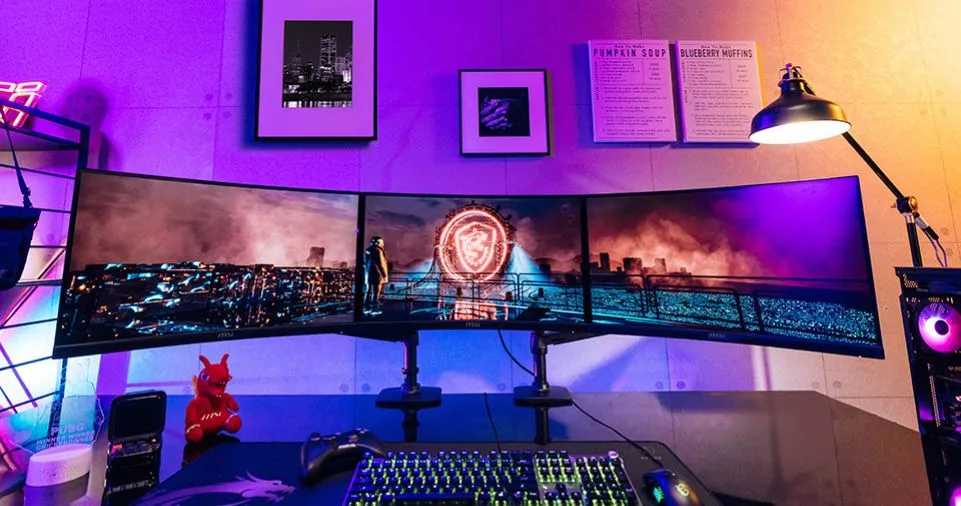
Monitor curvature is measured in radius: 1000R means the monitor forms part of a circle with a 1000mm (1 meter) radius. Smaller numbers indicate more aggressive curves.
Common curvature ratings:
- 1800R-1500R: Gentle curve, suitable for standard widescreen monitors
- 1000R: Aggressive curve, popular for ultrawide displays
- 800R: Very aggressive, primarily on super ultrawides
Curved Monitor Benefits
Reduced eye strain: The curved screen maintains more consistent viewing distance from your eyes to all parts of the display, reducing the need for eye refocusing.
Enhanced immersion: Particularly effective on ultrawide and super ultrawide monitors, curves wrap your peripheral vision, increasing presence in games.
Reduced reflections: Curved screens can deflect ambient light away from your viewing position, potentially reducing glare.
When to Choose Flat
Flat monitors remain superior for:
- Multi-monitor configurations (curved edges don’t align well)
- Content creation requiring accurate straight lines
- Shared viewing scenarios (curves best benefit centered viewers)
- Competitive gaming where some prefer traditional displays
Practical advice: For standard 16:9 monitors up to 27 inches, curvature provides minimal benefit. For 32-inch displays and all ultrawides, curved options enhance the experience significantly. Try viewing both in person if possible—curve preference is highly personal.
Connectivity and Ports: Future-Proofing Your Setup
Essential Port Types
DisplayPort 1.4:
- Maximum: 4K at 240Hz, 1440p at 360Hz
- Supports HDR
- Adaptive sync compatible
- Most common high-refresh connection
HDMI 2.1:
- Maximum: 4K at 144Hz, 1440p at 240Hz+
- Essential for PS5/Xbox Series X (120Hz support)
- Variable Refresh Rate (VRR)
- Auto Low Latency Mode (ALLM)
USB-C with DisplayPort Alt Mode:
- Single cable for video, data, and laptop charging
- Typically 65-100W power delivery
- Convenient for laptop gamers
- Still emerging on gaming monitors
Audio Output:
- 3.5mm headphone jack standard
- Some include basic speakers (rarely good quality)
- Audio passthrough from DisplayPort/HDMI
Port Configuration Planning
| Your Setup | Required Ports | Recommended Total |
|---|---|---|
| PC gaming only | 1x DisplayPort | 1x DP, 1x HDMI (backup) |
| PC + console | 1x DP, 1x HDMI 2.1 | 1x DP, 2x HDMI |
| Laptop + PC gaming | 1x USB-C, 1x DP/HDMI | USB-C, DP, HDMI |
| Multi-device switching | 2+ HDMI 2.1 or DP | 2x HDMI, 1x DP, USB-C |
Important note: Not all HDMI ports on monitors support the full HDMI 2.1 specification. Verify your specific monitor supports 4K 120Hz on HDMI if console gaming matters to you. Many monitors still ship with HDMI 2.0 ports limited to 4K 60Hz.
Gaming Genre-Specific Recommendations
Competitive FPS/Esports (CS:GO, Valorant, Apex Legends, Call of Duty)
Priority ranking:
- High refresh rate (240Hz minimum, 360Hz ideal)
- Fast response time (1ms GtG)
- Low input lag
- Appropriate size (24-27 inches)
Recommended specs:
- Size: 24-25 inches
- Resolution: 1080p (easier to drive high frame rates)
- Panel: TN or Fast IPS
- Refresh: 240-360Hz
- Features: G-SYNC/FreeSync, motion blur reduction
Why these choices: Competitive gamers need maximum responsiveness and frame rates over visual fidelity. Smaller screens allow eyes to track targets without head movement, while lower resolution enables GPUs to push 300+ FPS for the smoothest experience.
Action RPG/Adventure (The Witcher, Cyberpunk, Elden Ring, God of War)
Priority ranking:
- Visual quality (resolution, color accuracy)
- Screen size for immersion
- HDR for enhanced atmosphere
- Balanced refresh rate
Recommended specs:
- Size: 27-32 inches
- Resolution: 1440p or 4K
- Panel: IPS or OLED
- Refresh: 144-165Hz
- Features: HDR 600+, wide color gamut
Why these choices: Story-driven games benefit from larger displays with excellent color and contrast. You’re exploring detailed worlds rather than twitch aiming, so visual quality trumps extreme refresh rates.
Racing/Flight Simulators (Assetto Corsa, Microsoft Flight Sim)
Priority ranking:
- Ultrawide or super ultrawide aspect ratio
- Immersive curve
- Resolution for clarity at distance
- Refresh rate for smooth motion
Recommended specs:
- Size: 34-49 inches
- Resolution: 3440×1440 or 5120×1440
- Panel: VA or IPS
- Refresh: 144-165Hz
- Features: 1000R-1800R curve
Why these choices: Simulation games thrive on peripheral immersion. Ultra-wide screens place track edges or cockpit elements in your natural vision, replicating real driving/flying experience. Curved displays wrap around your view, enhancing the sensation of speed and spatial awareness.
MOBA/RTS (League of Legends, Dota 2, StarCraft II, Total War)
Priority ranking:
- Screen size for map awareness
- Sharp image quality
- Color accuracy for team/unit identification
- Moderate refresh rate
Recommended specs:
- Size: 27-32 inches
- Resolution: 1440p
- Panel: IPS
- Refresh: 144-165Hz
- Features: Wide viewing angles, good color gamut
Why these choices: MOBA and RTS games feature complex interfaces with minimap, abilities, and inventory systems. Larger, sharper displays let you see more battlefield detail, while excellent color accuracy ensures quick visual identification of friends, enemies, and abilities.
Budget-Conscious Gaming Monitor Strategy
Budget Tiers and What to Expect
Entry Level ($150-$250):
What you get:
- 24-27 inch screens
- 1080p resolution
- 144-180Hz refresh rates
- Basic TN or entry IPS panels
- FreeSync support
What you sacrifice:
- Color accuracy and viewing angles
- HDR (or HDR 400 only)
- Build quality and ergonomics
- Premium features
Sweet Spot ($250-$500):
What you get:
- 27 inch screens primarily
- 1440p resolution
- 165-180Hz refresh rates
- Quality IPS panels
- G-SYNC Compatible or FreeSync Premium
- Decent color accuracy (95%+ sRGB)
What you sacrifice:
- True HDR (HDR 1000+)
- OLED technology
- Premium build materials
- 240Hz+ refresh rates
Enthusiast ($500-$1000):
What you get:
- 27-32 inch options
- 1440p or 4K resolution
- 240-360Hz (1440p) or 144Hz+ (4K)
- Premium IPS or entry OLED
- HDR 600-1000 certification
- Excellent color accuracy (99-100% sRGB, DCI-P3 coverage)
What you sacrifice:
- Top-tier OLED (QD-OLED)
- Largest screen sizes
- Maximum HDR performance
Premium ($1000+):
Everything available:
- Latest OLED technology (QD-OLED, W-OLED)
- HDR 1000+ with mini-LED or OLED
- Maximum refresh rates at each resolution
- Professional-grade color accuracy
- Premium build quality and warranty
Maximum Value Recommendations by Budget
| Budget | Primary Use | Best Buy Strategy |
|---|---|---|
| Under $200 | Competitive gaming | 24″ 1080p 180Hz TN or IPS |
| $200-$350 | Balanced 1080p gaming | 27″ 1080p 165Hz IPS with FreeSync Premium |
| $350-$500 | Balanced 1440p gaming | 27″ 1440p 165-180Hz IPS with G-SYNC Compatible |
| $500-$700 | High-performance 1440p | 27″ 1440p 240Hz Fast IPS |
| $700-$1000 | Premium 1440p or entry 4K | 27″ 1440p OLED or 32″ 4K 144Hz IPS |
| $1000+ | No compromises | 32″ 4K OLED or 34″+ ultrawide OLED |
Common Gaming Monitor Mistakes to Avoid
Mistake #1: Buying Resolution Your GPU Can’t Handle
The problem: Purchasing a 4K 144Hz monitor paired with an RTX 4060 or RX 7600. These GPUs struggle to maintain 60 FPS in demanding 4K games, wasting the high refresh capability.
The solution: Match monitor resolution and refresh rate with realistic GPU performance. A 1440p 165Hz display fully utilized feels vastly superior to a 4K 144Hz display running games at 1080p medium settings.
Mistake #2: Ignoring Pixel Density
The problem: Buying a 32-inch 1080p monitor for desk use, resulting in a pixelated, blurry image where individual pixels become visible.
The solution: Follow pixel density guidelines: 24-25″ for 1080p, 27-32″ for 1440p, 27″+ for 4K. Maintain approximately 90-110 PPI for optimal sharpness without scaling requirements.
Mistake #3: Prioritizing Refresh Rate Over Resolution for Single-Player Gaming
The problem: A single-player RPG enthusiast buys a 1080p 360Hz monitor, sacrificing beautiful visuals for refresh rates they’ll never fully utilize in 60 FPS-capped story games.
The solution: Match monitor specs to your actual gaming habits. If you primarily play Cyberpunk, The Witcher, and Baldur’s Gate 3, a 1440p or 4K 120-165Hz display provides a better experience than 1080p 360Hz.
Mistake #4: Falling for “1ms Response Time” Marketing
The problem: Assuming all monitors advertising “1ms” perform identically, when specifications might reference different measurements (MPRT vs GtG) or represent best-case scenarios rather than typical performance.
The solution: Research professional reviews with actual response time testing. Rtings.com, TFTCentral, and Hardware Unboxed provide objective measurements showing real-world ghosting and response time consistency.
Mistake #5: Buying Without Console Compatibility Research
The problem: PS5/Xbox Series X owners purchase a 1440p 165Hz monitor only to discover their specific model doesn’t support 1440p 120Hz on their console, forcing 1080p 120Hz or 1440p 60Hz instead.
The solution: If gaming on PS5 or Xbox Series X, verify your specific monitor model supports the console modes you need. Not all monitors with the “right specs” work correctly with consoles due to firmware or HDMI implementation differences.
Setting Up Your Gaming Monitor for Optimal Performance
Step 1: Physical Positioning
Height adjustment: Position the monitor so the top of the screen aligns with or slightly below eye level when sitting naturally. This reduces neck strain during extended sessions.
Distance guideline: Sit approximately one arm’s length from 24-27″ monitors. For 32″ displays, add another 6-12 inches. For ultrawides, position so edges remain comfortably in peripheral vision.
Angle adjustment: Tilt the monitor back 10-20 degrees from vertical. This maintains perpendicular viewing angles across the entire screen, especially important for VA and IPS panels.
Lighting control: Position monitors perpendicular to windows to minimize glare. If facing windows is unavoidable, use curtains or blinds during gaming sessions.
Step 2: Windows Configuration
Refresh rate activation:
- Right-click desktop → Display Settings
- Scroll to Advanced Display Settings
- Select your monitor → Display adapter properties
- Click Monitor tab → Screen refresh rate dropdown
- Select maximum refresh rate (144Hz, 165Hz, etc.)
Important: Windows defaults to 60Hz even with high refresh displays. Manually changing this setting is essential to access your monitor’s full capabilities.
Resolution and scaling:
- Set native resolution (1080p, 1440p, or 4K)
- Adjust scaling if needed (typically 100% at 1080p/1440p, 150% at 4K)
- Test scaling in games individually—some handle custom scaling better than others
Step 3: Graphics Card Control Panel Settings
NVIDIA Control Panel:
- Enable G-SYNC (if available) in Display → Set up G-SYNC
- Select “Enable G-SYNC for windowed and full screen mode”
- Set preferred refresh rate to “Highest available”
- Adjust color settings if needed (default usually excellent)
AMD Adrenalin Software:
- Enable FreeSync in Display → Specs tab
- Configure Radeon Super Resolution if using lower native resolution
- Adjust color temperature and saturation to preference
- Enable Radeon Anti-Lag for reduced input latency
Step 4: Monitor OSD (On-Screen Display) Settings
Brightness: Set to 120-250 nits depending on room lighting. Most monitors default to 300+ nits which causes eye fatigue. Use calibration software or reduce brightness by 30-40% from maximum.
Contrast: Leave at default (typically 50 or 75) unless calibrating professionally
Response time overdrive: Test different settings in fast-paced games. “Normal” or “Medium” usually provides the best balance. “Extreme” or “Ultra” often introduces inverse ghosting.
Black equalizer/Shadow boost: Increases visibility in dark scenes but reduces contrast. Use sparingly—higher settings create washed-out blacks.
Game modes: Test manufacturer presets (“FPS,” “RTS,” “Racing”) but don’t assume they’re optimal. Many oversaturate colors or apply unnecessary sharpening.
Step 5: In-Game Optimization
V-Sync: Disable V-Sync when using FreeSync/G-SYNC. Traditional V-Sync introduces input lag and becomes unnecessary with adaptive sync.
Frame rate caps: Cap frame rate slightly below your monitor’s maximum refresh (e.g., 141 FPS cap on 144Hz monitor) to stay within adaptive sync range and reduce tearing.
Graphics settings balance: In competitive games, prioritize frame rate over eye candy. In single-player games, maximize visual quality while maintaining smooth minimum frame rates (60 FPS minimum recommended).
Future-Proofing Your Gaming Monitor Investment
Technologies on the Horizon
MicroLED displays: Self-emissive like OLED but without burn-in risk. Extremely bright, perfect blacks, and incredible longevity. Currently prohibitively expensive but expected to become consumer-viable by 2026-2027.
DisplayPort 2.1: Supports 4K at 480Hz or 8K at 120Hz, enabling next-generation gaming experiences. Monitors with DP 2.1 began appearing in late 2024 and will become standard by 2026.
AI-enhanced motion processing: NVIDIA DLSS 3 Frame Generation and AMD FSR 3 Frame Generation double perceived frame rates. Future monitors may include hardware-accelerated frame generation independent of GPU.
Quantum Dot OLED evolution: Improved QD-OLED panels with better burn-in resistance and higher peak brightness launching throughout 2025-2026.
Should You Wait or Buy Now?
Buy now if:
- Your current monitor is 60Hz or severely outdated
- You have budget allocated and prices are reasonable
- You’re experiencing display-related frustration in games
- Current technology meets your needs (1440p 165Hz IPS, for example)
Consider waiting if:
- You want bleeding-edge OLED at more affordable prices (6-12 months will help)
- You’re eyeing 4K 240Hz displays (more options and lower prices coming 2025)
- You have a perfectly functional current monitor
- You’re upgrading GPU soon and want to match capabilities
Future-proof shopping strategy:
- Buy for current needs, not theoretical future games
- Prioritize native resolution and panel quality over maximum refresh rates
- Ensure DisplayPort 1.4 minimum, HDMI 2.1 for consoles
- Consider 1440p 180Hz over 1080p 360Hz for longevity
- Warranty coverage matters—displays last 5-7+ years typically
Special Considerations for Different Setups
Dual Monitor Gaming Setups
Primary gaming monitor: Invest in your best specifications here (high refresh, quality panel, ideal resolution).
Secondary monitor: Can be more modest. A 1080p 60Hz IPS works perfectly for Discord, streaming software, browser, or music apps.
Matching vs. Mismatching:
- Matched sizes: Cleaner aesthetic, easier multitasking
- Different sizes: Primary 27″ 1440p 165Hz + secondary 24″ 1080p 75Hz provides excellent functionality at lower total cost
Alignment tips: Match monitor tops or centers for comfortable multi-screen viewing. Most gamers prefer tops aligned.
Console + PC Gaming on One Monitor
Essential requirements:
- HDMI 2.1 for PS5/Xbox Series X 120Hz support
- Multiple inputs for easy switching
- Low input lag in all modes
- Game Mode that activates automatically (ALLM)
Recommended specs:
- 27-32″ for comfortable couch and desk use
- 4K for console gaming, downsample to 1440p for PC competitive gaming
- 120-144Hz (consoles capped at 120 FPS maximum)
- IPS or OLED for best viewing angles
Switching convenience: Look for monitors with quick input switching via button or remote. Some models memorize separate settings for each input, automatically adjusting brightness, color, and game mode per device.
Laptop + External Monitor Setup
USB-C monitors: Single-cable solution providing video, data, and 65-100W laptop charging. Convenient for setup and teardown.
Daisy-chaining: Some business-oriented monitors support DisplayPort daisy-chaining, allowing one cable from laptop to power two monitors sequentially.
Performance consideration: Laptop GPUs (especially thin-and-light models) struggle with external 1440p or 4K high refresh displays in demanding games. Verify your specific laptop GPU can handle your target resolution and frame rate before purchasing.
Recommended for laptops:
- 27″ 1440p 120-165Hz with USB-C power delivery
- Minimal desk footprint (thin bezels, efficient stand)
- Quick-release mount if frequently moving setup
Testing Your New Gaming Monitor
Dead Pixel Check
Visit sites like DeadPixelBuddy.com or JScreenFix.com to display solid colors across the entire panel. Carefully inspect for:
- Dead pixels: Completely black spots that don’t light up
- Stuck pixels: Pixels displaying wrong colors (red, green, or blue permanently)
- Bright pixels: Always-on white pixels
Acceptable standards: Most manufacturers allow 3-5 dead pixels before warranty replacement. Premium monitors often promise zero dead pixel guarantees.
Backlight Bleed and IPS Glow Test
In a dark room, display a pure black image. Look for:
- Backlight bleed: Light leakage around screen edges (appears white/gray)
- IPS glow: Whitish glow in corners when viewing off-angle (normal for IPS)
- Clouding: Uneven lighter patches in dark areas
What’s acceptable: Minor backlight bleed in corners is normal and usually invisible in regular use. Severe bleeding visible in normal content warrants return or exchange.
Response Time and Ghosting Test
Visit TestUFO.com and run the ghosting test at your monitor’s maximum refresh rate. Watch the moving objects for trailing shadows. Compare different response time overdrive settings in your monitor’s OSD to find the best balance.
Professional tip: Record the test with your smartphone at 240 FPS or 120 FPS, then watch in slow motion. This reveals ghosting and response time issues invisible to naked eyes.
Color Accuracy Basic Check
Display reference images or use Windows color calibration (Settings → Display → Calibrate display color). Look for:
- Accurate white balance (whites should appear neutral, not blue or yellow-tinted)
- Distinct grayscale separation (able to see difference between adjacent gray shades)
- Color saturation appropriate to content (not oversaturated or washed out)
Advanced option: Professional colorimeters like DataColor SpyderX or X-Rite i1Display provide objective calibration, though most gamers don’t require this precision.
Frequently Asked Questions
Q: Should I buy 1440p or 4K in 2025?
A: For most gamers, 1440p at 165-180Hz offers better value and performance than 4K. Unless you have an RTX 4080 or better GPU and primarily play single-player games where you can appreciate finer detail, 1440p delivers superior frame rates and responsiveness at lower cost.
Q: Is OLED burn-in really a concern for gaming monitors?
A: Modern OLEDs include extensive burn-in mitigation (pixel shift, logo dimming, panel refresh cycles). For varied gaming with normal precautions (using screensavers, varying content), burn-in risk is low. Static HUD elements in thousands of hours of a single game pose the highest risk. Many manufacturers now offer 3-year burn-in warranties.
Q: Can I use a TV as a gaming monitor?
A: Yes, with caveats. Modern gaming TVs (LG OLED, Samsung QN90, Sony X90) offer excellent specs, larger sizes, and often superior HDR. However, TVs typically have higher input lag, larger pixel pitch (less sharp at desk distances), and lack high refresh rates at PC resolutions. Best for couch gaming, less ideal for competitive desk gaming.
Q: Does screen size affect competitive performance?
A: Yes, in fast-paced competitive games. Professional esports players overwhelmingly choose 24-25″ monitors because the entire screen fits in central vision without requiring eye or head movement to track action in corners. Larger monitors require more eye travel, potentially costing milliseconds in reaction time.
Q: How much does my graphics card matter for monitor choice?
A: Critically important. Your GPU determines maximum realistic frame rates at different resolutions. No point buying a 4K 240Hz monitor if your GPU delivers 60 FPS in modern games—you’re paying for specs you can’t utilize. Match monitor resolution and refresh rate to your GPU’s realistic performance in your most-played games.
Q: Should I get G-SYNC or FreeSync with my NVIDIA GPU?
A: G-SYNC Compatible (FreeSync monitors certified by NVIDIA) provides 90% of native G-SYNC benefits at much lower cost. Unless you’re buying a premium display (over $800) where native G-SYNC is common anyway, G-SYNC Compatible offers excellent value. Most NVIDIA users are perfectly satisfied with FreeSync monitors.
Conclusion: Making Your Final Decision
Choosing the right gaming monitor transforms your entire gaming experience. The perfect display makes fast-paced action feel more responsive, brings beautiful game worlds to life with stunning clarity, and provides countless hours of comfortable, immersive entertainment.
Remember these key principles as you shop:
Match specifications to your actual gaming habits. Competitive FPS players need different features than open-world RPG enthusiasts. Don’t chase maximum specs that don’t align with how you actually play.
Balance resolution, refresh rate, and GPU capabilities. The best monitor pushes your hardware to its limits without demanding frame rates you can’t achieve. A fully utilized 1440p 165Hz display beats an underutilized 4K 240Hz display every time.
Prioritize panel quality and features over pure size or resolution. A 27″ monitor with excellent color, low response time, and adaptive sync provides better experiences than a 32″ display with poor panel quality, regardless of resolution numbers.
Test thoroughly during your return window. Most retailers offer 14-30 day returns. Run dead pixel checks, evaluate backlight bleed, test response times, and play your favorite games. Don’t settle for a monitor that doesn’t meet your standards—premium display quality is worth being particular about.
Think long-term but don’t wait forever. Quality gaming monitors easily last 5-7 years. Buy for current needs with reasonable future growth, but don’t wait endlessly for perfect technology—the “perfect” display is always one year away in the tech industry.
Ready to Upgrade Your Gaming Experience?
Your perfect gaming monitor is waiting. Armed with the knowledge from this guide, you’re prepared to navigate specifications, avoid common pitfalls, and select a display that enhances every gaming session for years to come.
Visit your preferred retailers, compare options within your budget, read professional reviews for your shortlisted models, and make an informed decision. Your eyes (and your gaming performance) will thank you.
Have questions about your specific setup or need help choosing between particular models? Drop a comment below—we’re here to help you find your ideal gaming display!